This lab will demonstrate how to encrypt objects in S3 using KMS, we will also check what will happen with the objects once the CMK is disabled.
This will require a private S3 bucket, if you don’t have one yet, please go ahead and create one.
1-a. Navigate to the KMS console and click on create key.
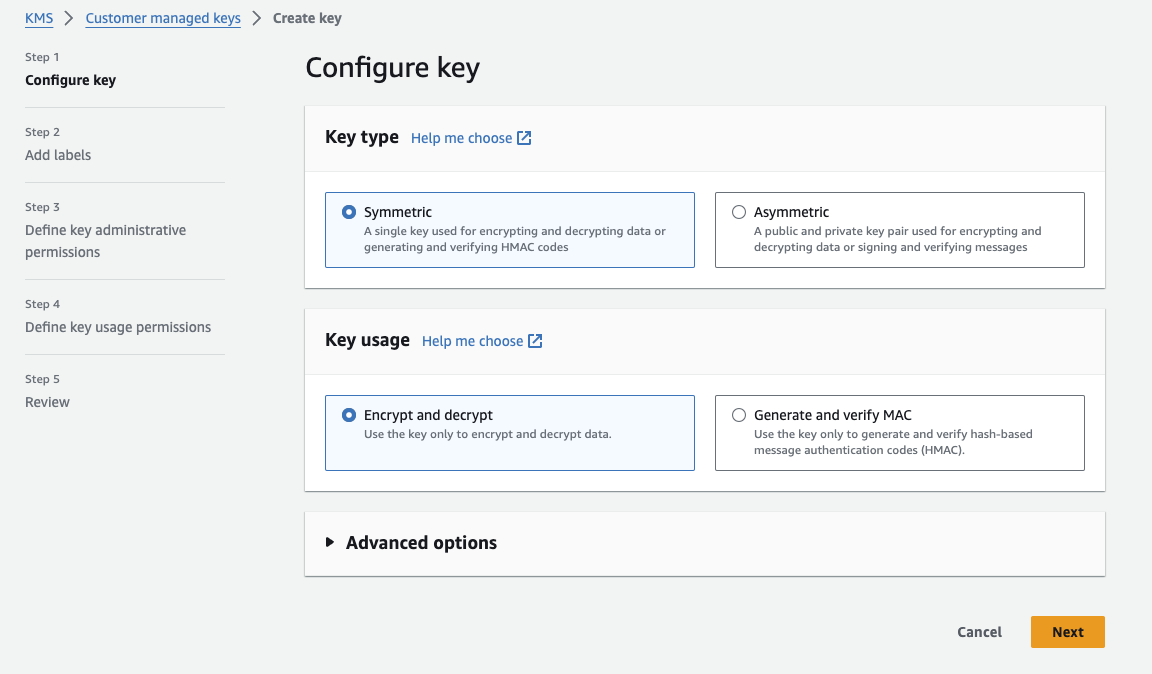
1-b. Select symmetric and click encryption and decryption.
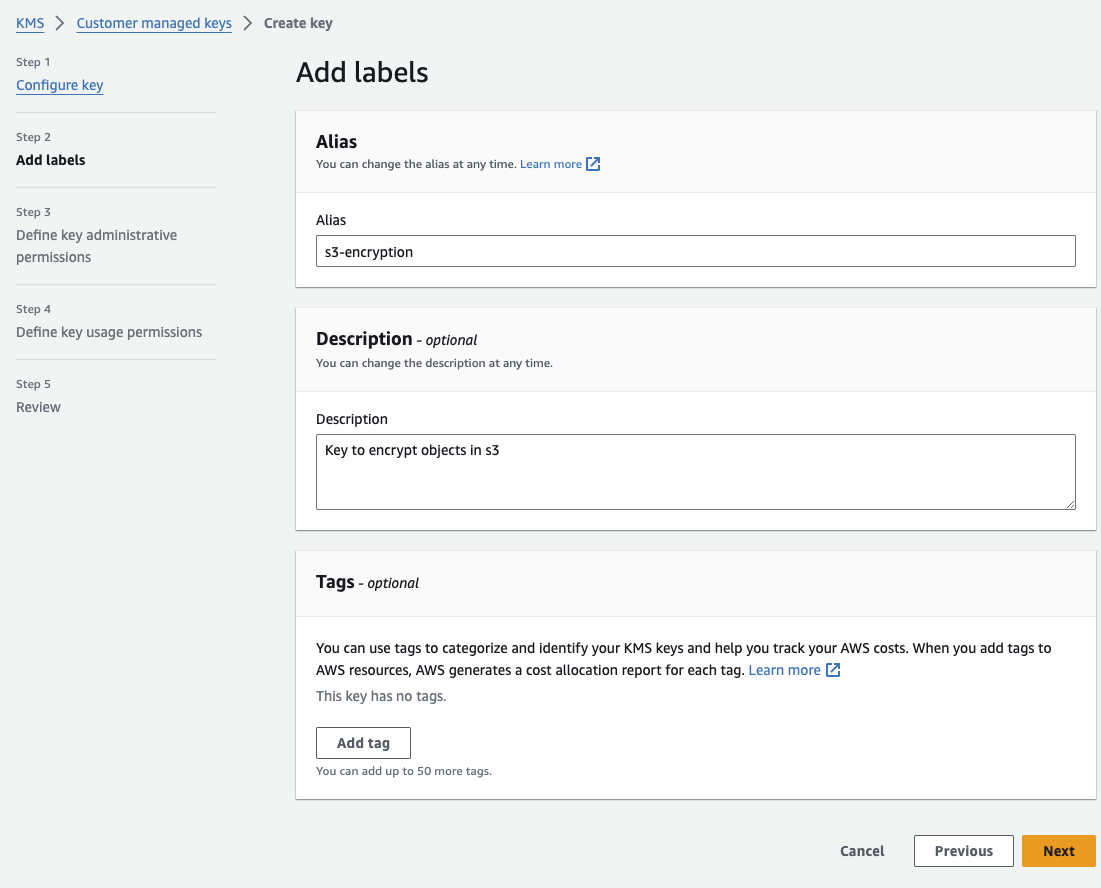
1-c. Set the alias and click next.
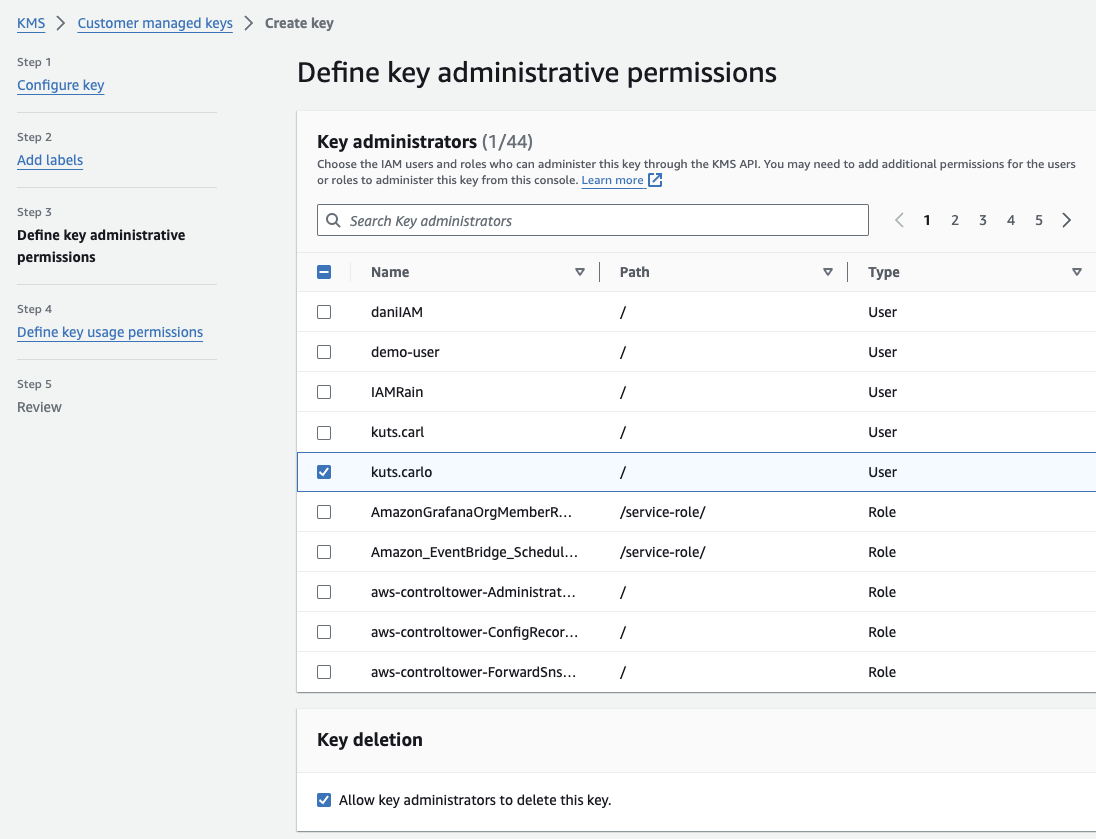
1-d. Set your IAM user as the key account administrator and click next.
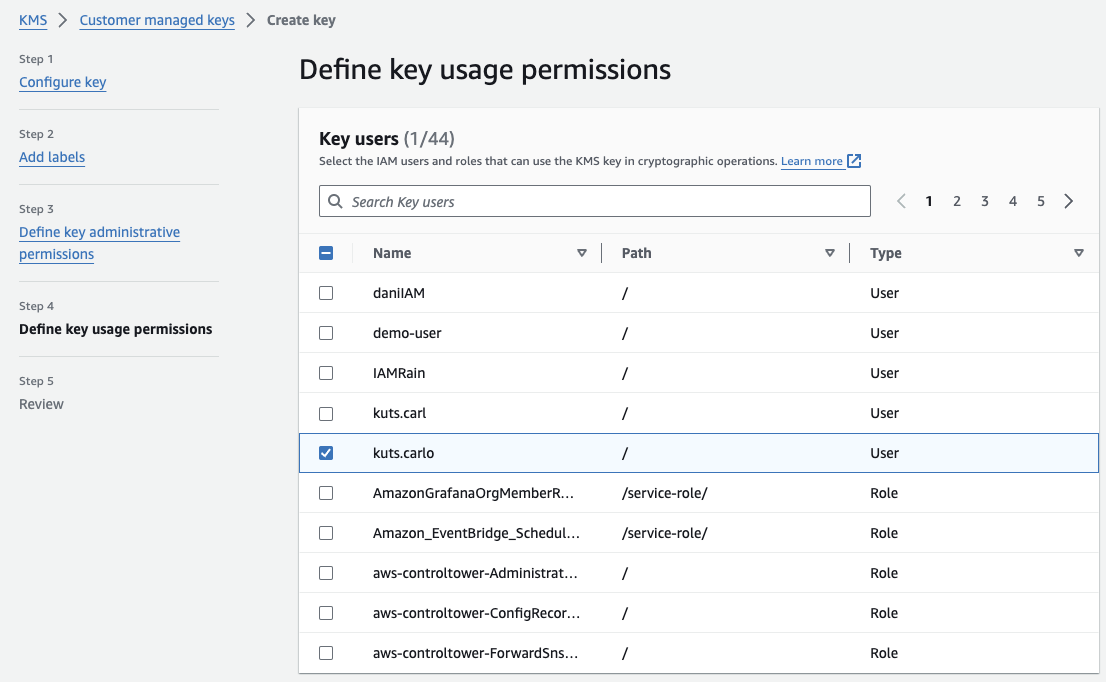
1-e. Select your IAM user again to allow it to use the CMK.
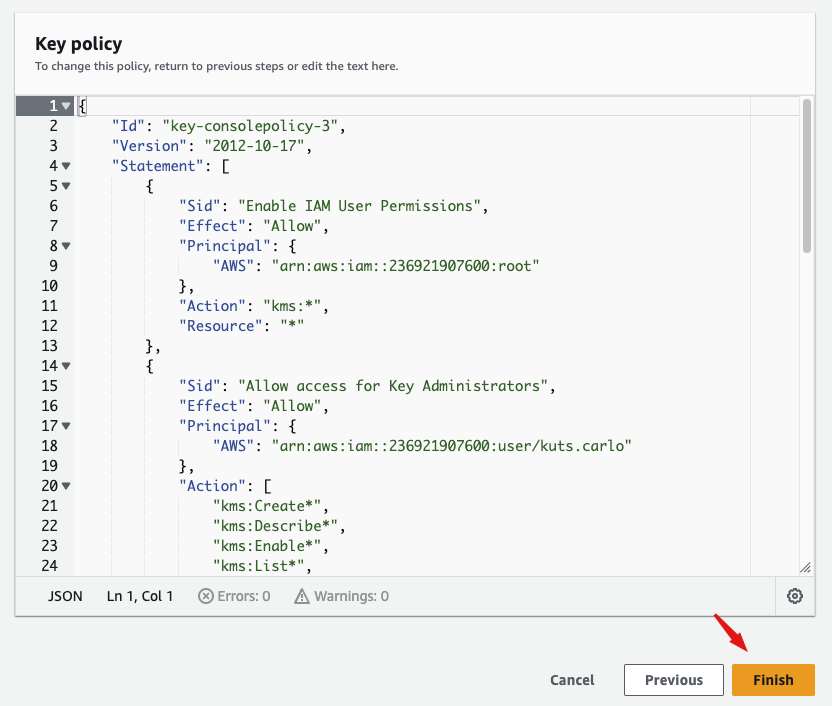
1-f. Review the policy and click finish.
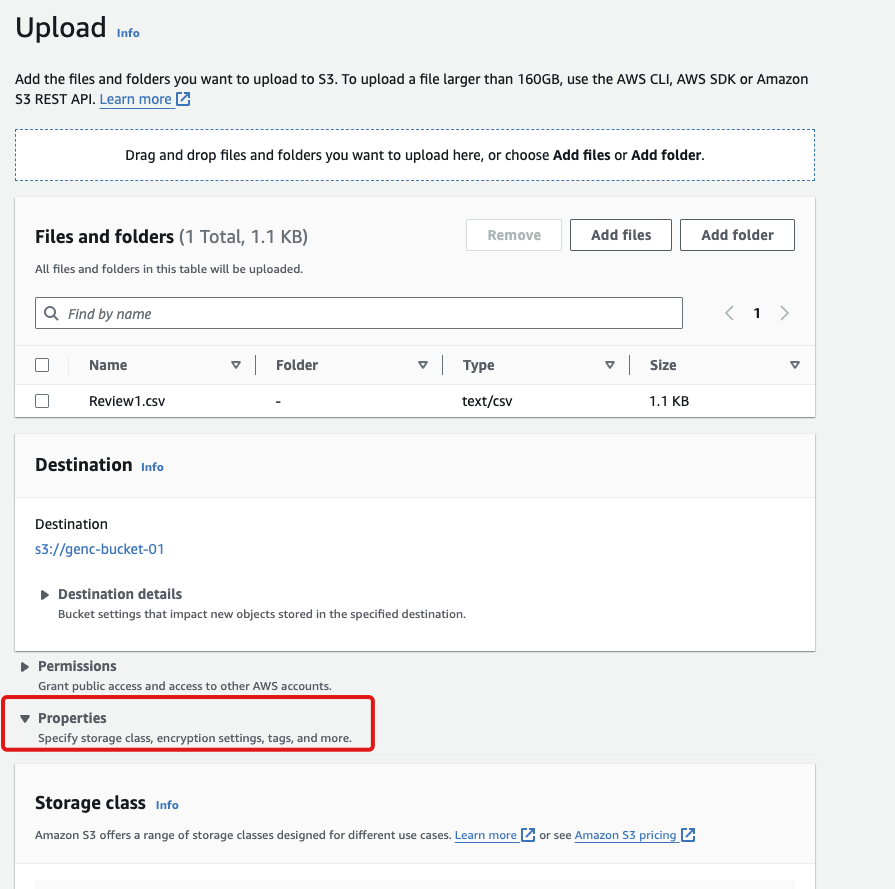
2-a. Navigate to your S3 bucket and upload an object.
Then click on Properties to drop down more options.
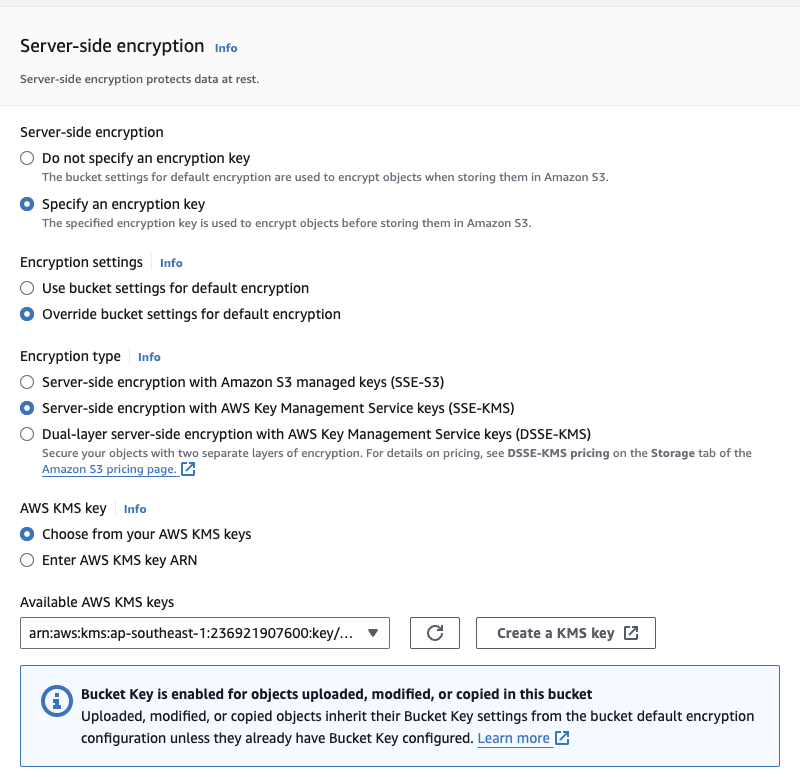
2-b. Scroll down to server-side encryption settings and enable it, select SSE-KMS for the encryption type and for the AWS KMS Key, select choose from your KMS master keys, and from the drop-down, select the CMK you created earlier.
Then click upload.
2-c. Try to download the object, you will be able to download it because you have permission to use the CMK.

3-a. Navigate back to KMS, select your key, click on key actions then disable.
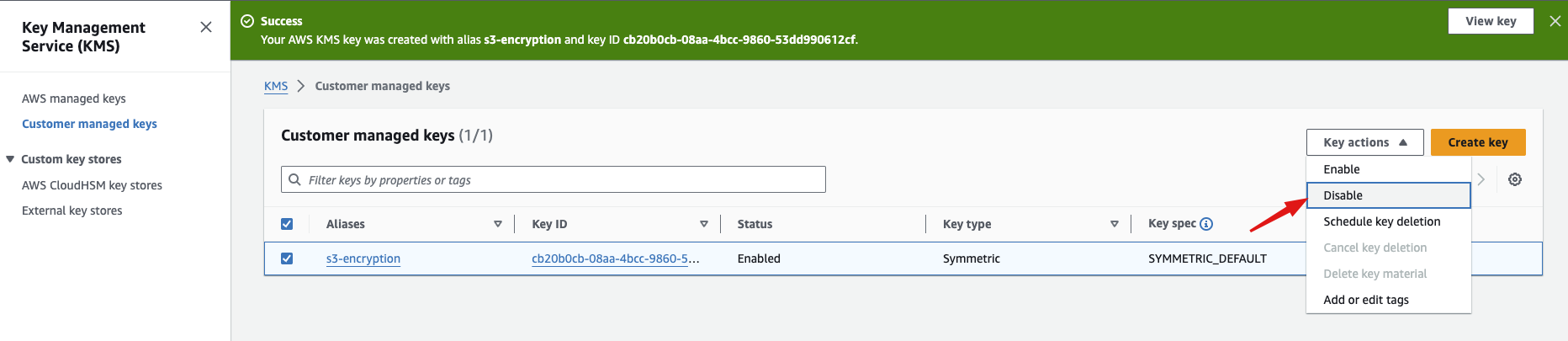
Confirm that you will disable this key, the click disable key.
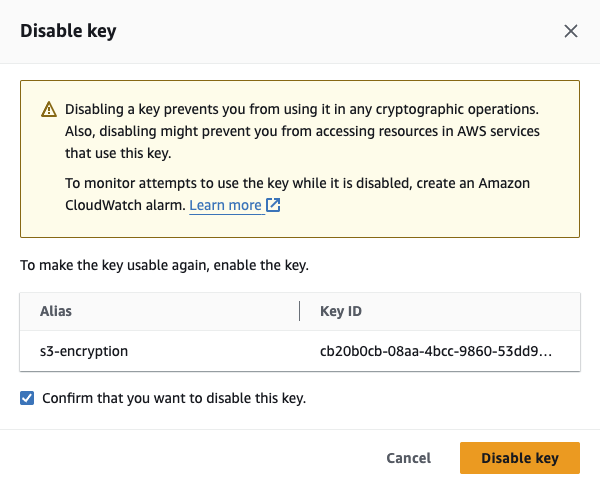
3-b. Now we have disabled the key, navigate back to your S3 bucket and download the object.
It will show a KMS disabled exception.

Well done!
Please copy and paste the JSON in the textbox on the left side and supply the necessary information.
{
 "s3_bucket_arn":"",
 "kms_arn":"",
}
Please don’t forget to delete the resources you created for this lab, in the case of KMS CMK, you need to schedule it for deletion.